Yoast SEO Settings: How to Set Up Yoast the Right Way for a New Blog
Yoast SEO is one of the most popular WordPress plugins, and its defaults are sensible. But a few Yoast SEO settings are worth checking on every new blog. This guide walks through the ones that matter most.
1. Run the First-Time Configuration
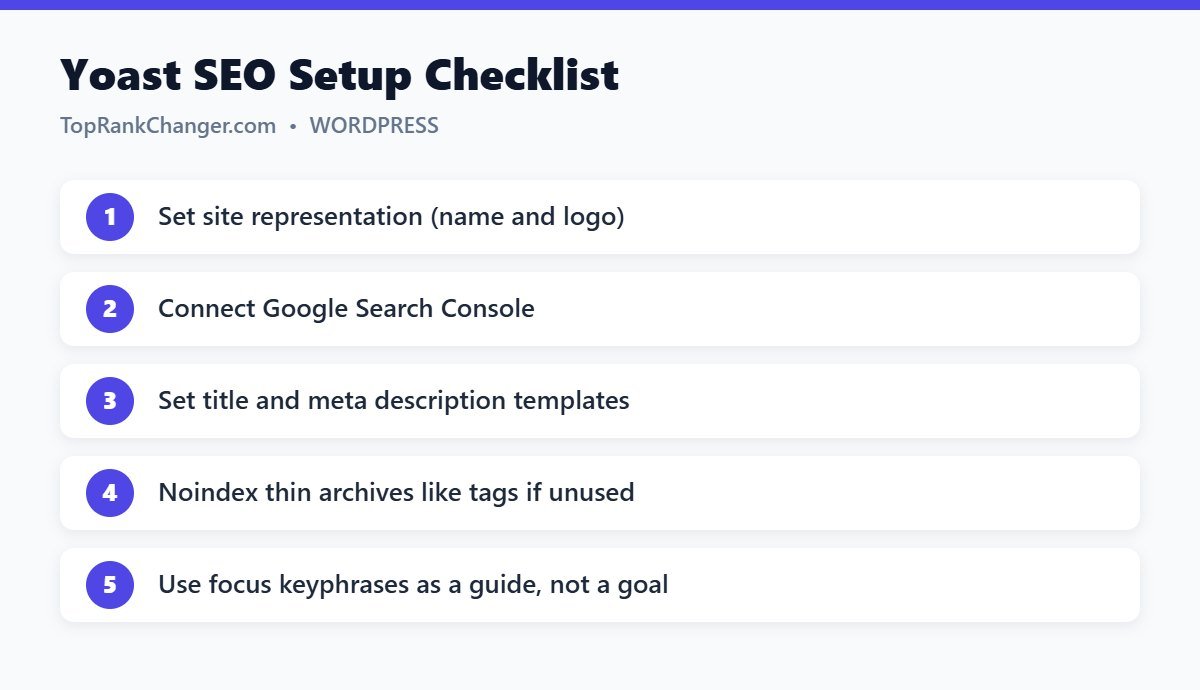
After installing Yoast, go to Yoast SEO → General and complete the first-time configuration. It optimizes your SEO data, asks whether the site represents an organization or a person, and helps you add social profiles.
2. Site Representation
Under Settings → Site representation, choose Organization or Person, add your site or brand name and upload a logo. Yoast uses this in the structured data it adds to your pages, helping Google understand who is behind the site.
3. Site Connections
Under Settings → Site connections, paste verification codes for Google Search Console, Bing Webmaster Tools and others. This is the easiest way to verify your site without editing theme files. Then set up Google Search Console.
4. Title and Meta Description Templates
Under Content types → Posts, Yoast lets you set default templates. A common setup:
- SEO title: Title – Separator – Site title
- Meta description: Excerpt
Writing a good excerpt for each post then automatically gives it a meta description. You can still override both for any individual post.
5. Archives and Taxonomies
Category pages can be helpful for visitors and search engines. Tag pages often create many thin, duplicate archives. If you don’t use tags meaningfully, consider setting tag archives to not appear in search results. Author archives on a single-author blog duplicate your blog page and can also be disabled.
6. XML Sitemaps
Yoast creates a sitemap automatically at /sitemap_index.xml. Make sure the feature is on, then submit it in Search Console. Only content types set to appear in search results are included.
7. Breadcrumbs
Many themes, including Kadence and GeneratePress, have their own breadcrumbs. If yours doesn’t, Yoast can add them, helping users navigate and giving Google a clearer site structure.
8. Using the Yoast Sidebar on Posts
When editing a post, the Yoast panel lets you set a focus keyphrase, preview your search snippet and see SEO and readability analyses. Aim for green or orange scores, but remember the traffic lights are guidance, not rules. A naturally written, helpful article that scores orange is better than a keyword-stuffed one that scores green.
9. Cornerstone Content
Mark your most important, comprehensive articles as cornerstone content. Yoast then applies stricter analysis and helps you link to them more often.
Final Thoughts
A few minutes spent on these Yoast SEO settings gives your blog a clean technical foundation. After that, focus your time on writing great content and building internal links. For more speed tips, read how to speed up WordPress.