Google Search Console for Beginners: A Complete Setup and Usage Guide
Google Search Console is a free tool from Google that shows exactly how your website performs in Google Search. It is the closest thing you have to a direct line to Google, and every website owner should use it from day one.
What Is Google Search Console?
Google Search Console (GSC) is a free service that helps you monitor your site’s presence in Google search results. It shows which searches bring visitors, which pages are indexed, what technical problems Google finds, and whether your site has any penalties or security issues.
How to Set It Up
- Go to Google Search Console and sign in with your Google account.
- Choose a property type. A Domain property covers every version of your site (http, https, www and non-www) but requires DNS verification. A URL prefix property covers one exact address and offers easier verification methods.
- Verify ownership. For URL prefix properties, the HTML tag method is easiest on WordPress: copy the verification code into your SEO plugin’s settings (Yoast SEO and Rank Math both have a field for it).
- Submit your XML sitemap under Indexing → Sitemaps.
Data starts appearing within a few days. Performance data is only collected from the moment the property is added.
The Performance Report
This is the report you will use most. It shows four key metrics:
- Clicks – how many times people clicked your site in search results.
- Impressions – how many times your pages appeared in results.
- Average CTR – clicks divided by impressions.
- Average position – your average ranking position.
Switch between the Queries, Pages, Countries and Devices tabs to see where traffic comes from. Compare date ranges to spot growth or drops.
Three quick wins from the Performance report
- High impressions, low CTR: rewrite the page’s title tag and meta description to be more compelling. See our guide to title tags and meta descriptions.
- Positions 8–20: pages close to page one often need only a content update and a few internal links to move up.
- Unexpected queries: searches you rank for but never targeted are ideas for new articles or new sections.
The Pages (Indexing) Report
Shows how many pages are indexed and lists the reasons others are not, such as “Crawled – currently not indexed” or “Excluded by noindex tag”. Many exclusions are normal. Focus on important pages that should be indexed but are not. Our guide on getting indexed by Google explains each status.
URL Inspection Tool
Paste any URL from your site into the search bar at the top to see whether it is indexed, when it was last crawled, and which canonical URL Google chose. You can also request indexing for new or updated pages.
Core Web Vitals and HTTPS
These reports use real-user data to show whether your pages load quickly and are served securely. New sites may not have enough traffic for data yet. Learn more in Core Web Vitals explained.
Links Report
Shows your top linked pages (both from other sites and internally) and the sites that link to you most. Use it to find strong pages that can pass value to newer content through internal links.
Manual Actions and Security Issues
If Google applies a manual penalty or detects hacking or malware, it appears here. Ideally, these reports always say “No issues detected”.
A Simple Weekly Routine
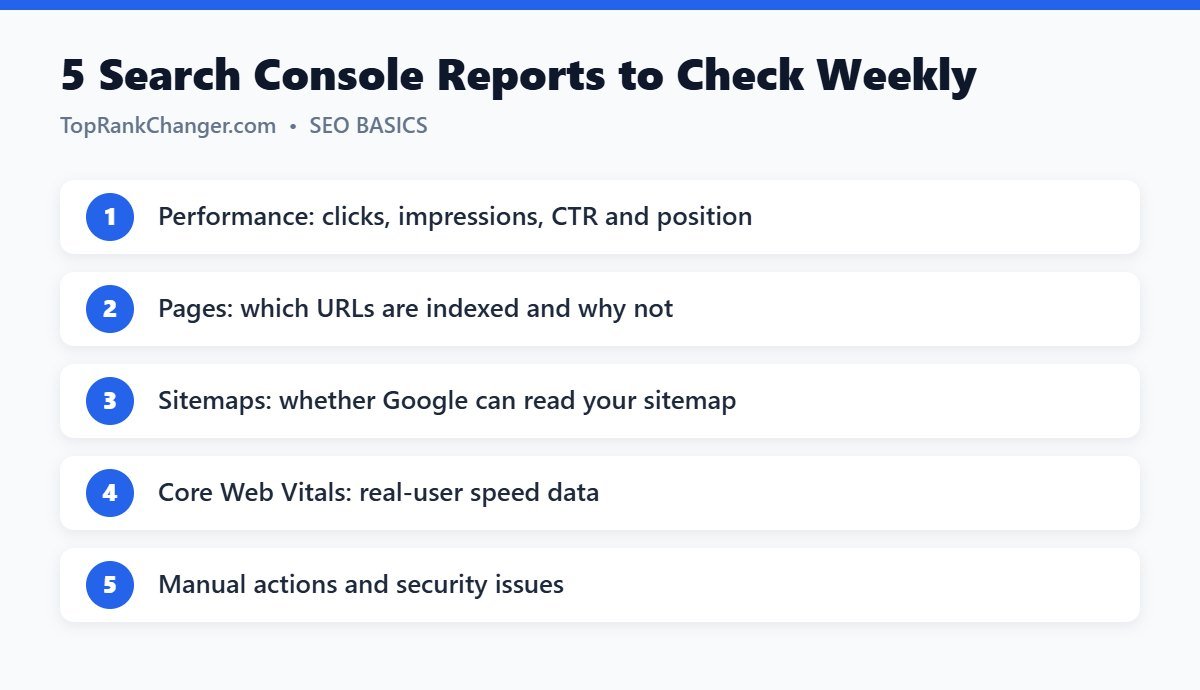
- Check Performance for any big changes in clicks.
- Look for high-impression, low-CTR pages and improve one title.
- Check the Pages report for new errors.
- Inspect and request indexing for any new important posts.
Final Thoughts
Search Console turns SEO from guesswork into decisions based on real data. Set it up once, check it weekly, and let it guide what you write and improve next.