How to Speed Up a WordPress Site: 10 Proven Fixes for Beginners
A slow website loses visitors, rankings and revenue. Research by Google has long shown that the probability of a visitor leaving rises sharply as load time increases. The good news: most WordPress sites can become dramatically faster with a handful of changes, no coding required.
First, Measure Your Current Speed
Before changing anything, test a few key pages (your homepage and a typical blog post) with:
- Google PageSpeed Insights – shows real-user Core Web Vitals and lab diagnostics.
- GTmetrix or WebPageTest – detailed waterfall charts that show what loads and how long it takes.
Write down the results so you can see what improved. Always test the mobile version, since that is what Google primarily uses. Learn what the metrics mean in Core Web Vitals explained.
1. Use Good Hosting
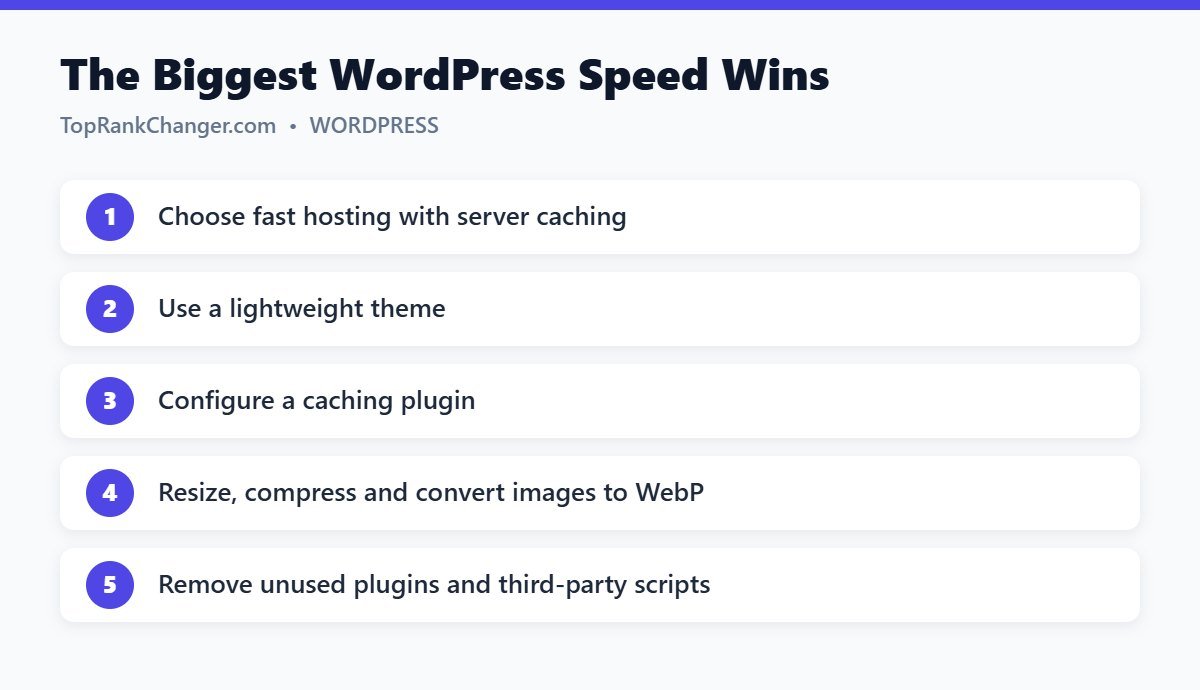
Hosting is the foundation. Cheap, overcrowded servers respond slowly no matter how well you optimize. Look for hosts that use modern server software (such as LiteSpeed or NGINX), current PHP versions, built-in caching and data centers close to your audience.
2. Use a Lightweight Theme
Multipurpose themes with built-in sliders, animations and dozens of features load a lot of code on every page. Lightweight themes like Kadence, GeneratePress and Astra load quickly and still look professional.
3. Install a Caching Plugin
Caching saves a ready-made version of each page so the server does not have to build it from scratch for every visitor. If your host runs LiteSpeed, use LiteSpeed Cache; otherwise, options include WP Rocket (paid), W3 Total Cache or WP Super Cache. Enable page caching, browser caching and, carefully, CSS/JS minification.
4. Optimize Images
Images are often the heaviest part of a page.
- Resize images before uploading — a blog image rarely needs to be wider than 1,200–1,600 pixels.
- Compress images and convert them to WebP (many caching and image plugins do this automatically).
- Lazy-load images below the fold (WordPress does this by default), but not the main image at the top of the page.
5. Remove Unnecessary Plugins
Go through your plugin list and ask whether each one is truly needed. Deactivate and delete anything unused. Replace heavy plugins with lighter alternatives, and avoid plugins that load scripts on every page for a feature used on just one.
6. Limit Third-Party Scripts
Social media widgets, chat boxes, multiple tracking codes and embedded feeds all load resources from other servers. Keep only what earns its place, and delay non-essential scripts until the user interacts with the page.
7. Use a Content Delivery Network (CDN)
A CDN stores copies of your static files on servers around the world, so visitors download them from a nearby location. Cloudflare offers a free plan, and many hosts include a CDN.
8. Keep Everything Updated
Newer versions of PHP, WordPress, themes and plugins often include performance improvements and security fixes. Check your PHP version in your hosting dashboard and use a currently supported version.
9. Clean Up Your Database
Over time, WordPress collects post revisions, spam comments, trashed items and expired data. Most caching plugins include a database cleanup tool. Back up your site before cleaning.
10. Optimize Fonts and Embeds
- Use system fonts or limit custom fonts to one or two families and weights.
- Host fonts locally when possible.
- Replace embedded YouTube videos with lightweight “click to load” previews.
What About Ads?
Display ads add scripts to every page. Quality ad management companies optimize their code for speed and Core Web Vitals, but you should still keep the rest of your site lean so ads do not push your pages into the “slow” category.
A Quick Speed Checklist
- Fast host with server-level caching
- Lightweight theme
- Caching plugin configured
- Images resized, compressed and in WebP
- Unused plugins removed
- Minimal third-party scripts
- CDN enabled
- Current PHP version
Final Thoughts
Speed optimization is not about chasing a perfect 100 score. It is about giving real visitors a fast, smooth experience. Make the big improvements first — hosting, theme, caching and images — and you will see most of the benefit.